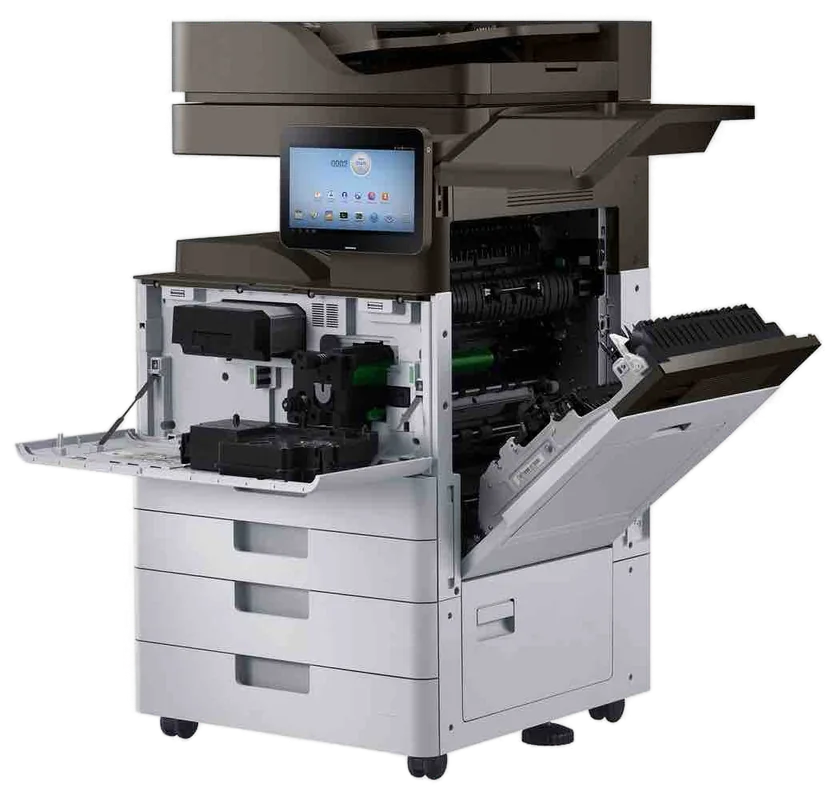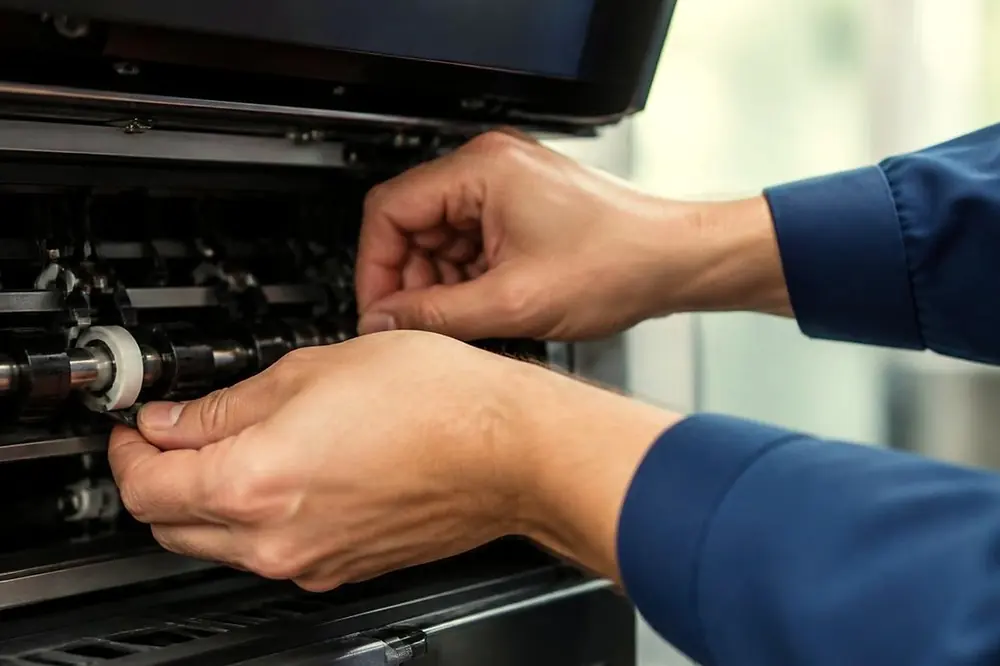
One jam is an accident. A jam every few pages is a pattern, and a pattern has a cause you can find by working from the quickest, cheapest check towards the most involved one. This post sets out that order for an office with a business printer or copier, so you know what is safe to do at the machine and when to stop.
Look at where the paper stops
Before you clear anything, notice where the sheet is sitting. The position tells you which part of the machine is involved, and it is the most useful detail you can give a technician later.
| Where the sheet stops | What it may point to |
|---|---|
| Barely out of the tray | Paper condition, tray guides, or a worn pickup roller |
| Crumpled at the entry to the machine | Curled or damp paper, or a feed roller that grips poorly |
| Two or three sheets pulled in together | Sheets stuck together, or a separation roller that is worn |
| Flat and whole in the middle of the path | A feed or transport roller, or a paper type that does not match the setting |
| Creased or half out near the exit | The fuser area, which is hot, so do not reach in |
Write down which of these you saw and which tray the paper came from. Jams that always involve the same tray point at that tray. Jams that move around point at the paper or the settings.
Clear the jam safely first
Leave the machine switched on while you clear a jam unless the manual says otherwise, because the panel usually shows which cover or tray to open. Follow the animation or the message on the panel, open only the parts it names, and take the paper out in the direction shown by the label inside the cover. Pull gently and evenly. A sheet that tears leaves pieces behind, so stop, look, and find every piece.
Never reach into or past any part marked hot. If the jam is at or near the fuser, shut the machine down properly and let it cool for the time the manual states before you touch anything. If you see smoke or flame, or smell burning, leave the machine, follow your building fire procedure and call 000. Unplug it only if that is safe.
Paper is the first suspect
Paper that has taken up moisture goes limp or curls at the edges, and sheets can cling together. That can be why a printer jams on one particular ream and behaves itself on the next. Check these in turn:
- Is the ream fresh from a sealed wrapper, or has it been open on a shelf for weeks?
- Does the stack show curl? Lay a sheet on a flat desk. If the corners lift, the paper is a poor choice for that day.
- Is more than one kind of paper in the tray? Do not mix brands, weights or colours in one tray, and do not top up half a tray with different stock.
- Is the paper within the weight range the machine accepts? The weight is printed on the ream wrapper in grams per square metre, and the machine specification lists what each tray takes.
Fan the stack, turn it over, and reload from a sealed ream as a test. If the jams stop, you have found it, and the fix is in how the paper is stored. Letterhead, recycled stock and heavier paper can behave differently from plain office paper, so try them in the tray the manual recommends for that kind of media.
Tray guides and fill level
Paper guides should touch the edges of the stack lightly. Too loose and sheets can skew as they are picked. Too tight and the paper can bind and buckle. Press the guides in until they just meet the stack, then ease them back a fraction if the paper does not slide freely.
Do not load above the maximum line marked inside the tray. An overfilled tray lets the top sheets slide forward together, and a stack that is too low can leave the pickup roller reaching for the last few sheets. On some models the tray detects the position of the guides to work out the paper size, and on others the size is set at the panel, so check that the size on screen matches what is in the tray.
The paper type set at the panel
The machine adjusts how it feeds and how much heat it applies according to the paper type chosen. Plain, thick, labels, envelopes, recycled and others are usually offered, though the exact menu name varies by model. If someone printed on labels or heavy stock and left the setting on that choice, ordinary paper afterwards can feed badly or fail to bond toner properly. Set the type to match what is really in the tray, and set it back when the special stock is finished.
A scrap left behind
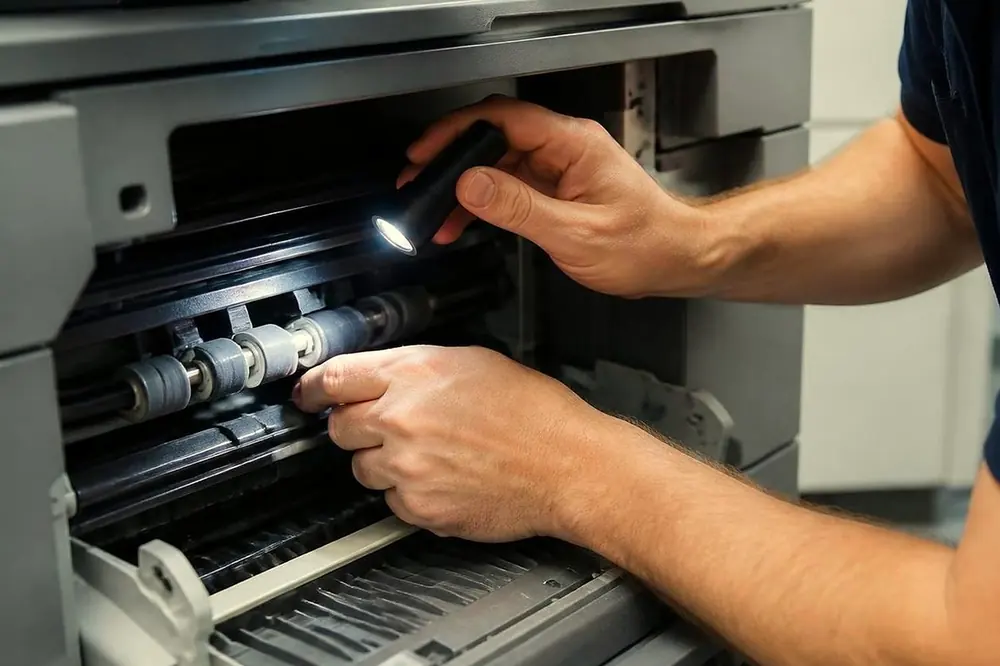
A small torn corner can sit hidden in the path and catch every sheet that follows. If jams keep happening at the same spot, look again with a torch, including the double sided printing area, which flips sheets to print on both sides. Its name differs between makes. Only look where the panel and manual tell you to open, and do not use sharp tools or reach past anything marked hot. If you can see a scrap you cannot reach without doing that, stop and call.
Pickup and feed rollers
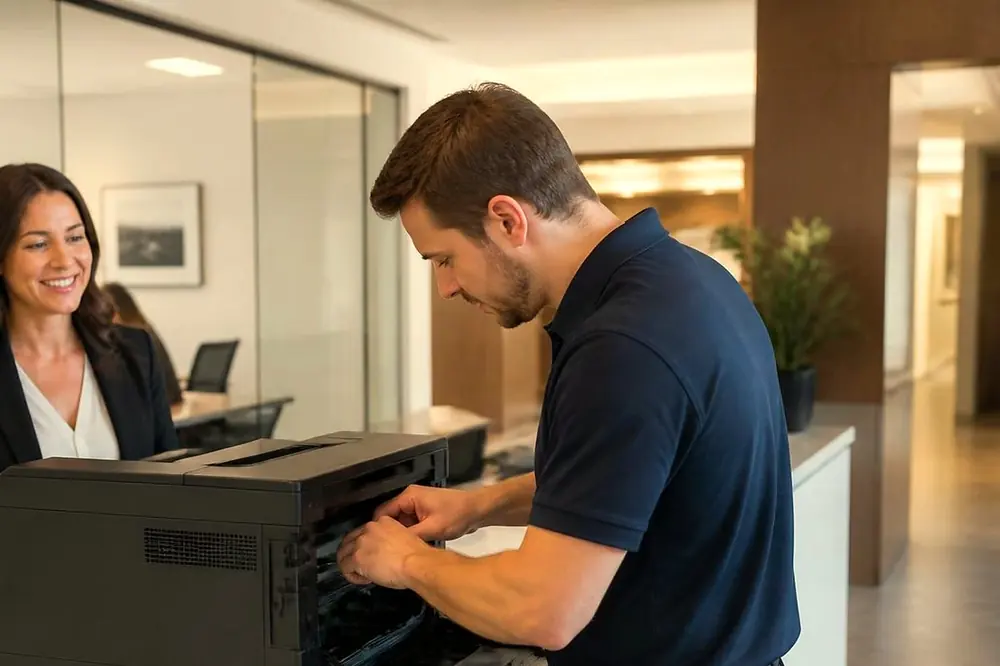
Rubber rollers pick the top sheet from the tray and push it along the path. Over time the surface can wear smooth or glaze, and then it grips poorly. The signs can include a tray that reports it is empty while paper is in it, double feeds, sheets that skew as they enter, and jams that happen only from one tray while the others behave.
The manual for your machine may describe wiping the rollers with a lint free cloth and water. If it does, follow it exactly, and do not use solvents, which can damage the rubber. Makers rate wear parts for a number of pages, and the rating differs by model and by part. A heavily used copier shared by a whole floor of an office tower in the CBD, or a busy front desk printer in Chermside, can reach those ratings sooner than a machine used lightly by one person.
When repeated jams mean a worn part
Once the paper is fresh, the guides are right, the type is correct and no scrap is left in the path, a jam that keeps happening in the same tray or the same place is telling you something. Rollers can be worn, a sensor can misreport, or the path may be out of adjustment. None of that is a job for pliers and patience. A technician can inspect the paper path, check the rollers and other wear parts, replace what has worn and test the machine before leaving.
Laser technicians are certified and repair at your premises, and 98% of repairs are done on the first visit. A fault that returns is fixed again at no charge. Our page on photocopier paper jams sets out the repair service, and commercial printer repairs covers desktop and workgroup printers. The price is agreed on the phone.
Humid Brisbane summers
Brisbane summers are hot and humid with afternoon storms, and paper can pick up moisture in that weather, particularly in a storeroom without air conditioning or near a loading dock. Keep reams sealed until you need them and store them off the floor in the conditioned part of the building where you can. If you notice more jams from Christmas to March, check the paper store before you suspect the machine. Wherever you are in metropolitan Brisbane, from Milton to Capalaba, the same checks apply, and our photocopier service across Brisbane page lists the areas covered.
A rule to work by
One jam after you changed the paper stock means change the stock. Three jams in the same place in a week, after the paper, guides, settings and path have been checked, means stop clearing and arrange a repair. Carrying on clearing the same jam can wear the machine further and costs the office time. To book, ring (07) 3073 5255. The line can be busy, and when it is the call is logged and returned.
Ring (07) 3073 5255 with the make, the model and what it is doing. We settle the price on the call, and same day depends on the fault and the diary. When the line is busy the call is logged and returned.