A machine in the corner is not an installation
Plugging in a copier takes four minutes. Making it useful takes the rest of the morning. The machine needs somewhere to stand that suits the people who use it, an address on the network that no other device will take, a driver on each computer, scan buttons that lead somewhere real, and a main user who knows how to clear a jam without breaking anything.
Offices that skip that work end up phoning us three weeks later. The machine prints in colour by accident, the scans vanish, one computer cannot find it, and a staff member has been quietly walking to the other floor. All of it was preventable on day one.
Before the machine arrives
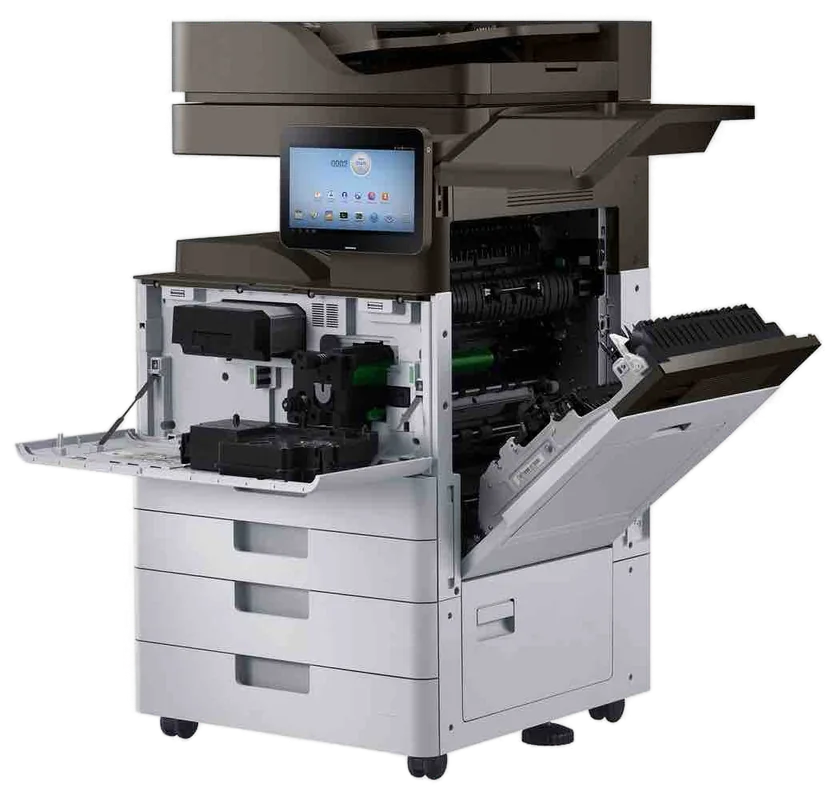
We like to hear about the job early. Ring with the make and model, or the model you are considering, the floor and the building, and who will use it. We ask about the room: how much clearance there is, whether there is a window and where the sun falls, whether the floor is carpet or a raised floor, and how the machine will get through the door.
We ask about the network. Who looks after it? Is there a fixed address range? Are there rules about devices joining? In an office with an IT provider we speak to the provider early and agree what they will do and what we will. In an office with no IT person we do it all and write down what we did.
Power is the last check. A commercial copier wants its own outlet, not a double adaptor on a shared board with a kettle. Where a floor has had flickering, we mention a surge protector and why.
The order we work in
The steps are the same for a workgroup laser and a floor standing copier. Only the scale changes. We finish each one before starting the next.
- Position the machine with room for the trays, the side door and the finisher, clear of direct sun and open doors
- Check the power outlet and the network point, and change the administrator password from the factory default
- Give the machine a fixed network address that will not clash with anything else
- Install drivers on the computers that will print, set sensible defaults such as double sided and black and white, and test from each
- Set up scan to email with the mail server, port and security type your office actually uses
- Set up scan to folder with a shared folder and a service account whose password will not expire
- Load the paper into the right trays and tell the panel what is in each
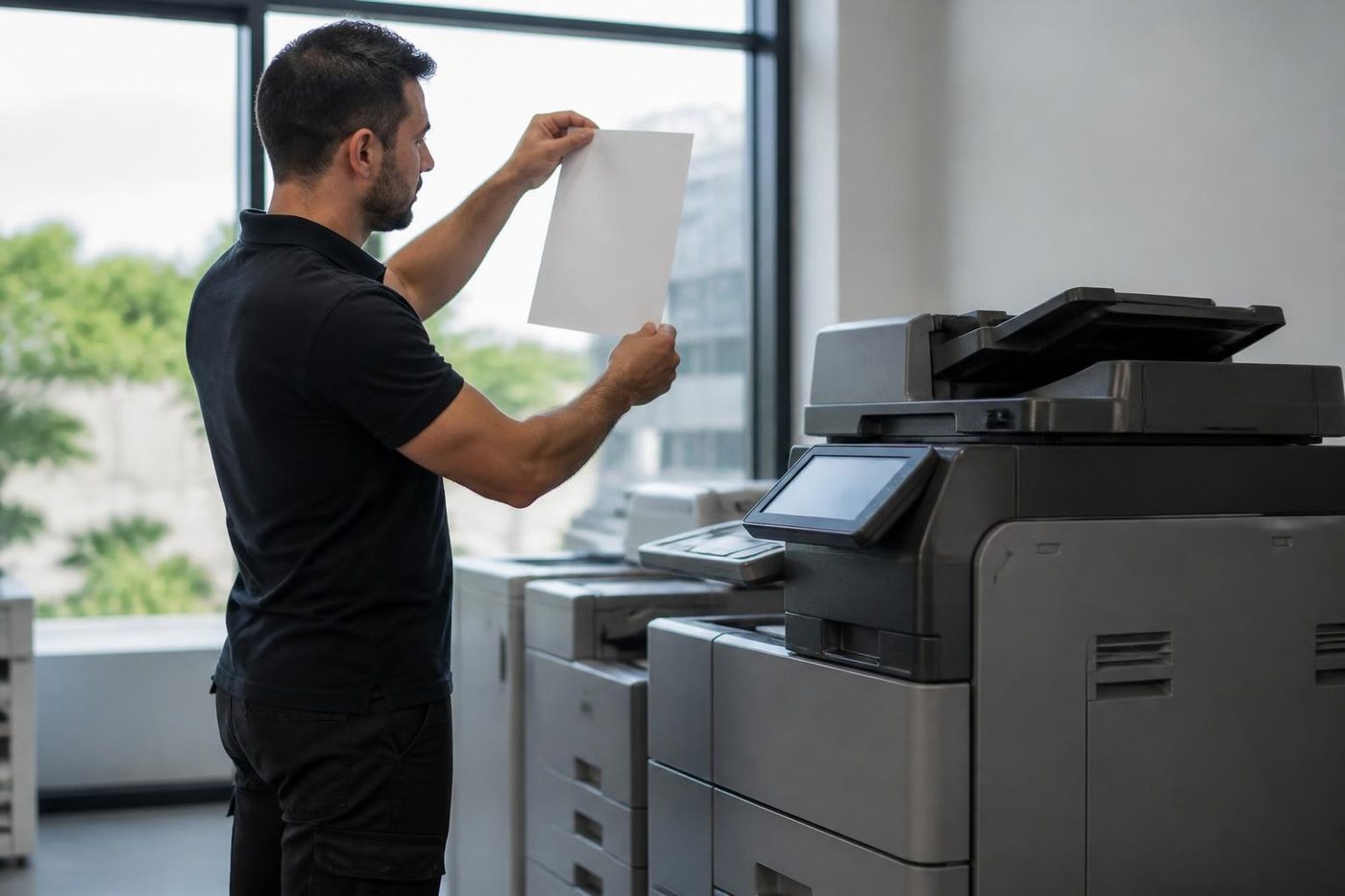
- Test every function with real documents: print, copy, scan, finish and, where fitted, fax
- Show the main users how it works and leave a written note of the settings
What we set, and what goes wrong if we skip it
This table is the short list of what a proper setup covers.
| Setting | What it does | What happens when it is missed |
|---|---|---|
| Fixed network address | Keeps the machine in one place on the network | The printer goes offline when another device takes its address |
| Drivers and defaults | Lets each computer print with the right options | Colour by accident, single sided copies, the wrong tray |
| Scan to email | Sends scans to inboxes through the mail server | Scans fail with a server or login error |
| Scan to folder | Saves scans to a shared folder | Scans vanish, or the folder cannot be found |
| Tray and paper settings | Tells the machine what is loaded where | Jams and wrong size warnings |
| User codes or card sign in | Tracks who prints and copies | No record of use, and no control over colour |
| Administrator password | Protects the settings | A network device left on factory defaults |
Most calls after an install are about the scan rows. We spend our time there.
Scan to email and scan to folder
Scan to email depends on a mail server that accepts the machine, with the right port, a security setting that matches and credentials that do not expire. Scan to folder depends on a share that exists, a permission that works and a name that does not change when someone reorganises the file server.
We set both up with your IT provider where there is one, and without where there is not. We also record what was set. When somebody changes a password or a mail rule six months later and scanning stops, the note tells the next technician where to look first. Our scan to email guide explains the usual causes if you want the detail.
Where it stands, and why that matters
Placement shapes how a copier is used and how long it lasts. It needs room around it for trays, side door and finisher. It should be clear of direct sun and open doors, because paper takes up moisture and sensors dislike glare. It should be where people will use it, not where the removalists left it, and within reach of a network point and a power outlet.
Queenslander offices have the sun problem. Hallways run east to west, afternoon light pours down them, and a copier at the end bakes. Fortitude Valley warehouse conversions have the opposite: concrete floors, big open plans, and a corner that nobody wants. Tell us about the room and we say what we would look for.
Who prints, who scans, who is allowed
Many offices want to control access and see what each team uses. User codes, card readers and sign in screens do that where the machine supports them. We set the defaults that suit your office: double sided on, colour off unless asked, scans to the right place. Where the machine can keep a log, we turn it on.
Scan destinations are tied to a service account, not a person. When a person leaves, the scans do not.
Getting it through the door
Before the setup comes the delivery, and it is a surprise how often nobody has measured. A floor standing A3 copier with a finisher can be well over a metre wide, and it moves on a trolley that needs a clear line from the dock to the corner. Count the lifts, the corridors, the sharp turns and the doors. Count the steps, too. A pair of steps at the back of a Queenslander turned office is enough to stop a delivery.
Raised floors and soft carpet are their own problem. A machine standing on a carpet tile floor with a trolley is fine. One standing on a raised floor panel that was never meant to take a point load is not. If you are unsure, tell us what the floor is and we say what we would want to know from the building manager.
We do not drag machines through foyers. If a building has a goods lift or a delivery window, we use it, and we plan the day around the answer.
The network side, in plain words
Every printer and copier on a network has an address, the way every house has a street number. If two devices share one address, one of them falls off the network, and the one that falls off is usually the printer, usually on a Monday. We give the machine a fixed address outside the range the router hands out, and we write it on the note.
Computers find the machine in one of two ways. They can talk to it directly, or through a print server that queues the jobs. Small offices mostly go direct. Bigger ones prefer a server, because the queue lives in one place and the drivers can be pushed out centrally. We set up whichever your office uses, and if you are not sure, we ask who looks after your computers and have the conversation with them.
Then there is the driver. A model specific driver gives access to every finishing option. A universal driver is simpler but hides some. We install the one that suits how the office prints, and set the defaults so people do not need to think. Double sided and black and white as standard, colour on request.
Mail servers, ports and why scanning stops
Scan to email is the part that breaks. The copier connects to a mail server on a particular port, with or without encryption, with or without a login. Each of those has to match what the server expects. When an office changes its email provider, tightens its security or renews a password policy, the copier can fall out of step overnight.
Some email systems need a dedicated account for devices. Some want a relay that accepts mail from the copier's address. Some have turned off older sign in methods that copiers still use. These are things your IT provider will know, and we ask the right questions of them. Where an office has no one, we work it through with the provider's support line.
Whatever the arrangement, we write it down. The note says which account the machine uses, what port and what security, and who owns the password. That page has saved more callouts than any other part of an installation.
Scan to folder and the shared drive
A scan to folder button is useful only when the folder exists and the machine can write to it. We set up the share, the permission and a service account for the machine. We use a service account because a personal login stops working the day the person leaves or changes their password.
We also talk about the folder structure. A dozen scan buttons that all lead to different folders look tidy on day one and confusing by month three. Most offices need three or four destinations. We suggest which, and we test each with a real document.
Macs, phones and the one person who prints from home
Most Brisbane offices have a mix. A few Macs in the design corner, a laptop that connects from the kitchen, phones that want to print a boarding pass. We install for the computers you tell us about and say plainly what is and is not supported. Mobile printing depends on the machine and the network, and we tell you before we promise anything.
If the office has guests who print, say so. A guest network that cannot see the copier is a design choice, not a fault, and it affects what we set up.
Installing a fleet
A practice with a printer on every floor or a school with machines in several blocks is installed as one planned job. We set up the first machine fully, test it, and then copy the settings across so the machines match. We label each with its address and its location, and we leave a single list with all of them.
Where there are several buildings we group the machines into one visit if the logistics allow. Where a site has restricted access, we send names ahead of time and arrive when we said we would.
Machines we supply, and machines you already own
We sell and supply commercial copiers, new and second hand, warranted, and we install what we sell. If you bought a machine elsewhere, or inherited one with a lease, we can install that too, so long as the contract allows it. Be honest with us on the phone about where it came from, because it affects what we can do about settings and service.
A second hand machine deserves a careful install. We reset it to a known state, check the counters and the wear parts, and set it up fresh as if it were new. A copier arriving with the last office's address book and scan folders is a common cause of strange behaviour.
The week after
A machine that works on the day can still show a problem a month later. That is when it matters who installed it. We know how the machine was set up, and the technician who attends has the notes.
For the first weeks, ask users to tell you about anything odd. A tray that misfeeds, a scan that goes to the wrong place, a finisher that jams. These are small settings, and they are easy to fix early. Our work is warranted, and if the same fault returns we fix it again at no charge.
Clinics, schools and site offices
A medical practice wants a machine that is quiet, near the front desk but out of the line of sight of the waiting room, and set up so that scans of patient paperwork go to the right folder and no other. We ask about that before we touch anything. A school wants machines that teachers can use without a manual, with codes so a department cannot spend another department's colour budget. A builder with a site office wants a machine that survives dust, a power supply that is stable and a scan button that sends the drawings to the project folder.
Each office has its own priorities. We ask what yours are before we begin, and the setup follows.
Storm season and the power point
A copier does not enjoy a brownout. A surge that a laptop shrugs off can leave a copier with a corrupted setting or a power supply that has taken a knock. In Brisbane, with summer storms that regularly shake the grid, we mention a surge protector at the outset and where the building allows we suggest a dedicated circuit.
If a machine has recently been through a power cut and is behaving oddly, tell us. We check the settings before assuming the hardware has failed.
Security, in the amount that matters
A copier is a computer with a paper tray. It has a hard drive or storage, an address book, stored scans and a network connection. We change the default administrator password on every machine we install, switch off services the office does not use and note who holds the new password.
Where a machine holds data and is going to leave the building, a proper wipe matters. If we take away an old machine for you, we clear its storage first. If you are concerned about what an old copier remembers, ask us on the phone.
What you get when we are finished
A machine that prints, copies and scans from every desk that needs it. A written note of the address, the scan settings, the accounts and the paper in each tray. A person in the office who knows what to do when it jams. And a phone number that gets you the person who installed it.
If anything on that list is missing when we pack up, we are not finished.
Showing people the machine
The most useful ten minutes of the day. We show the main users how to load paper, clear a jam safely, change a toner unit and use the scan buttons. We point out the three things not to touch. We write the settings on a page and leave it with the machine.
People who understand the machine report faults early, and early faults are cheap.
Light and drums
Ten seconds of daylight can finish a drum
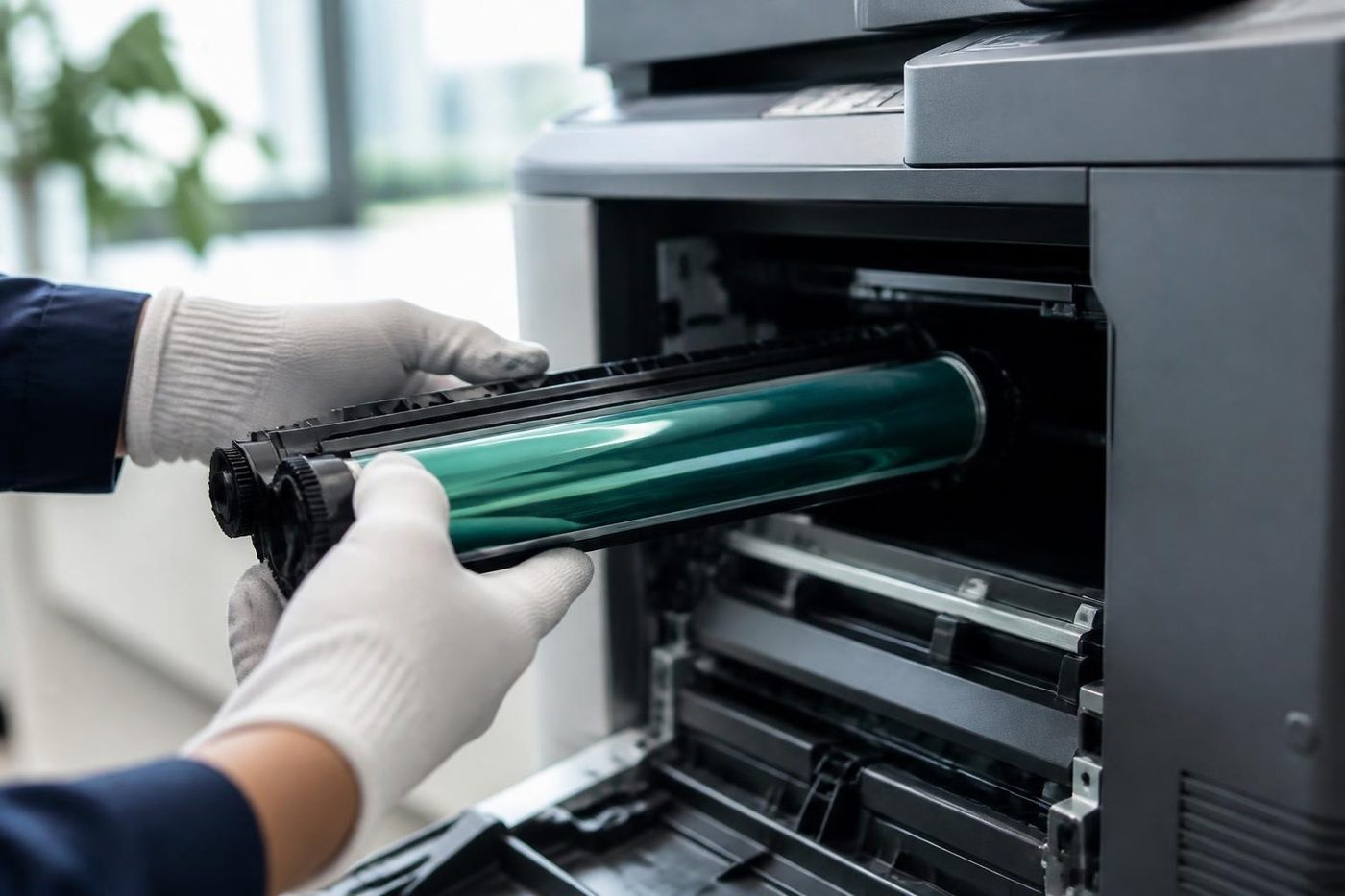
Open the back door of a Queenslander turned office on a bright January afternoon and the sun runs straight down the hallway. A copier drum left on a desk in that light is already losing life. Nobody sees it happen. The pages look fine until grey bands show up a week later, and the invoice for a second drum comes with them.
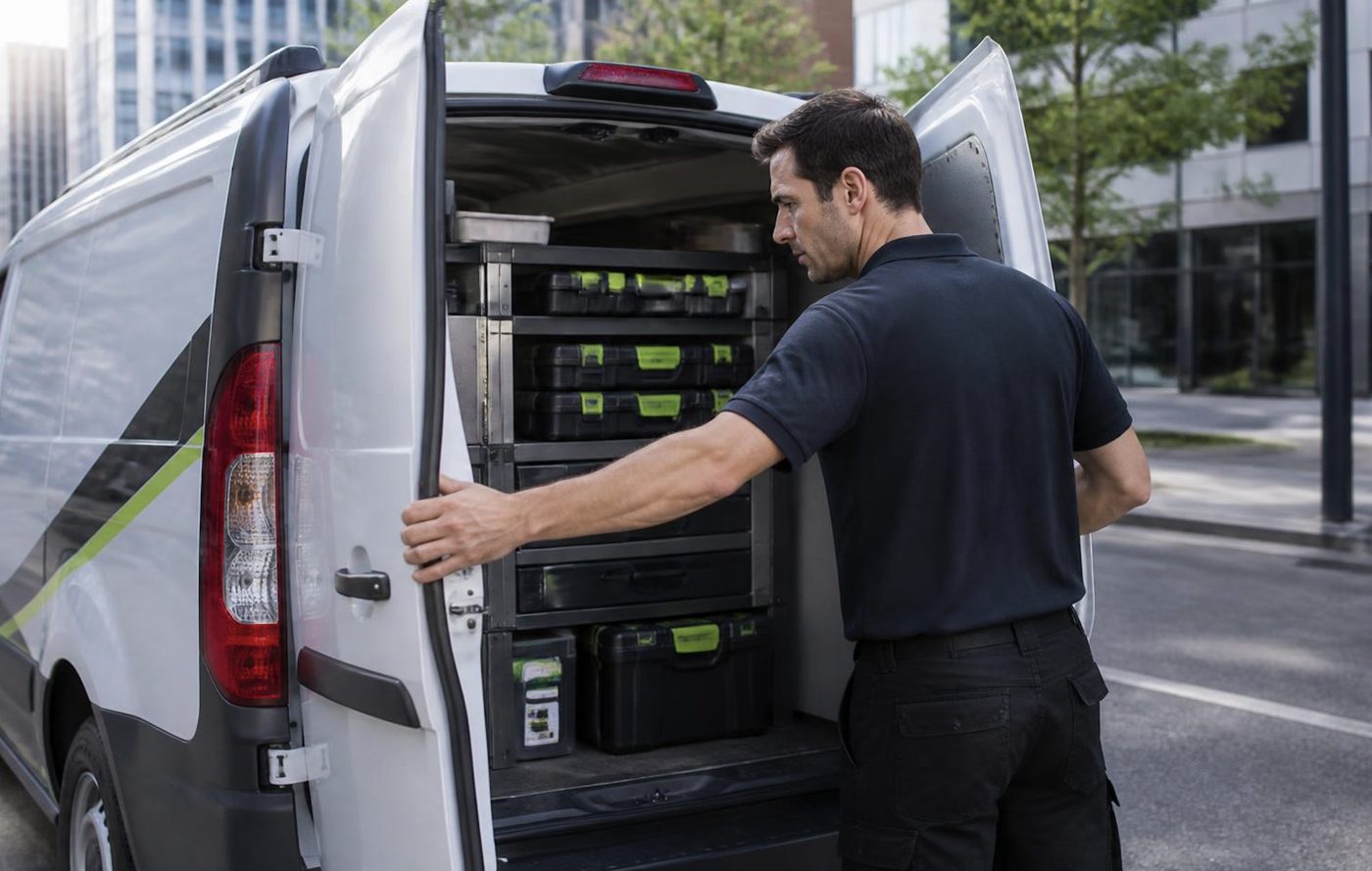
Ours stay wrapped and out of the light from the van to the machine and back. A small habit with a large saving.
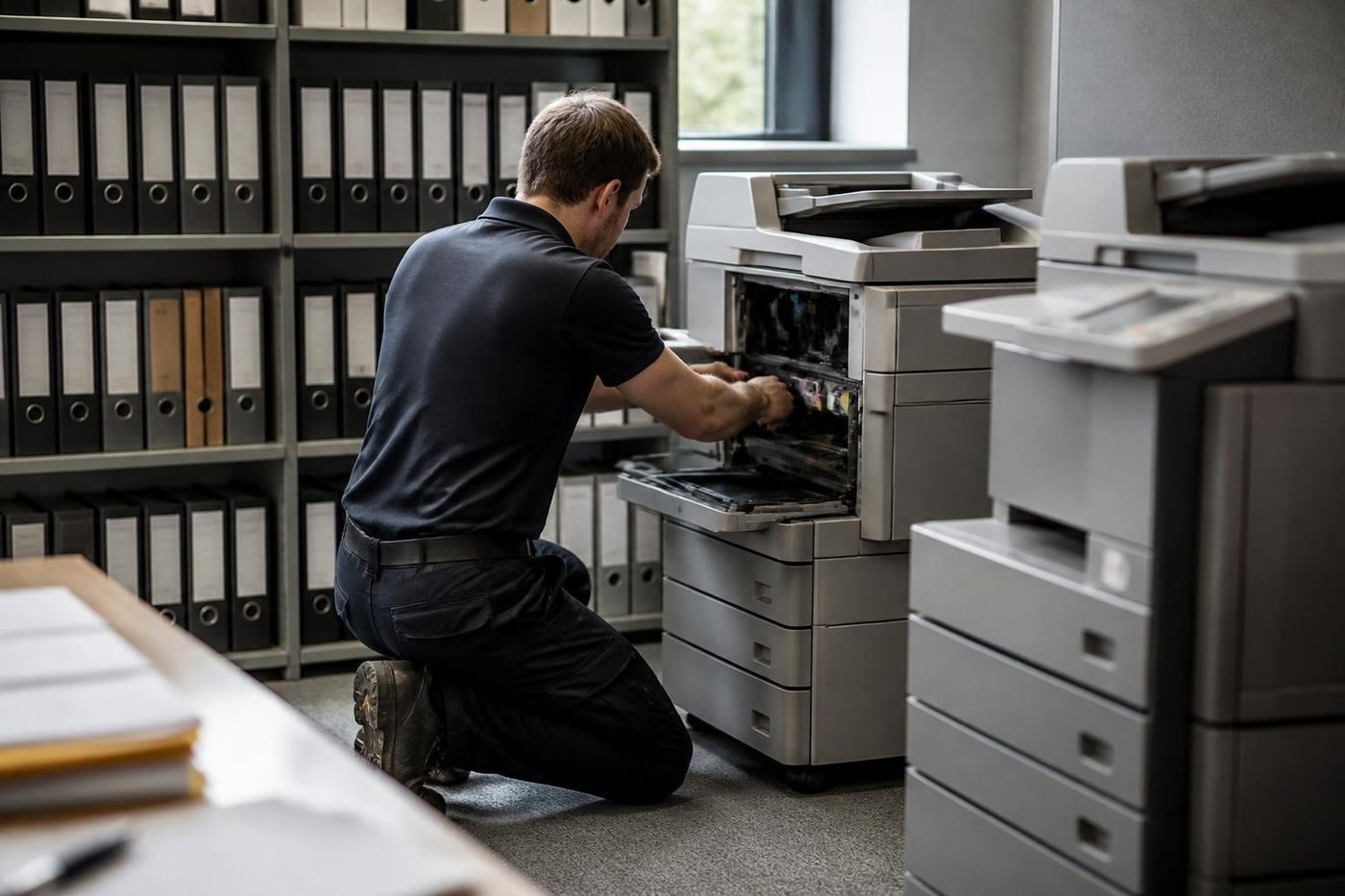
- Wrapped. Drums stay covered until the second they go in.
- Gloved. No skin oil on anything that touches paper.
- Cause first. If it is not the drum, the drum stays in the box.
Keep reading around Brisbane
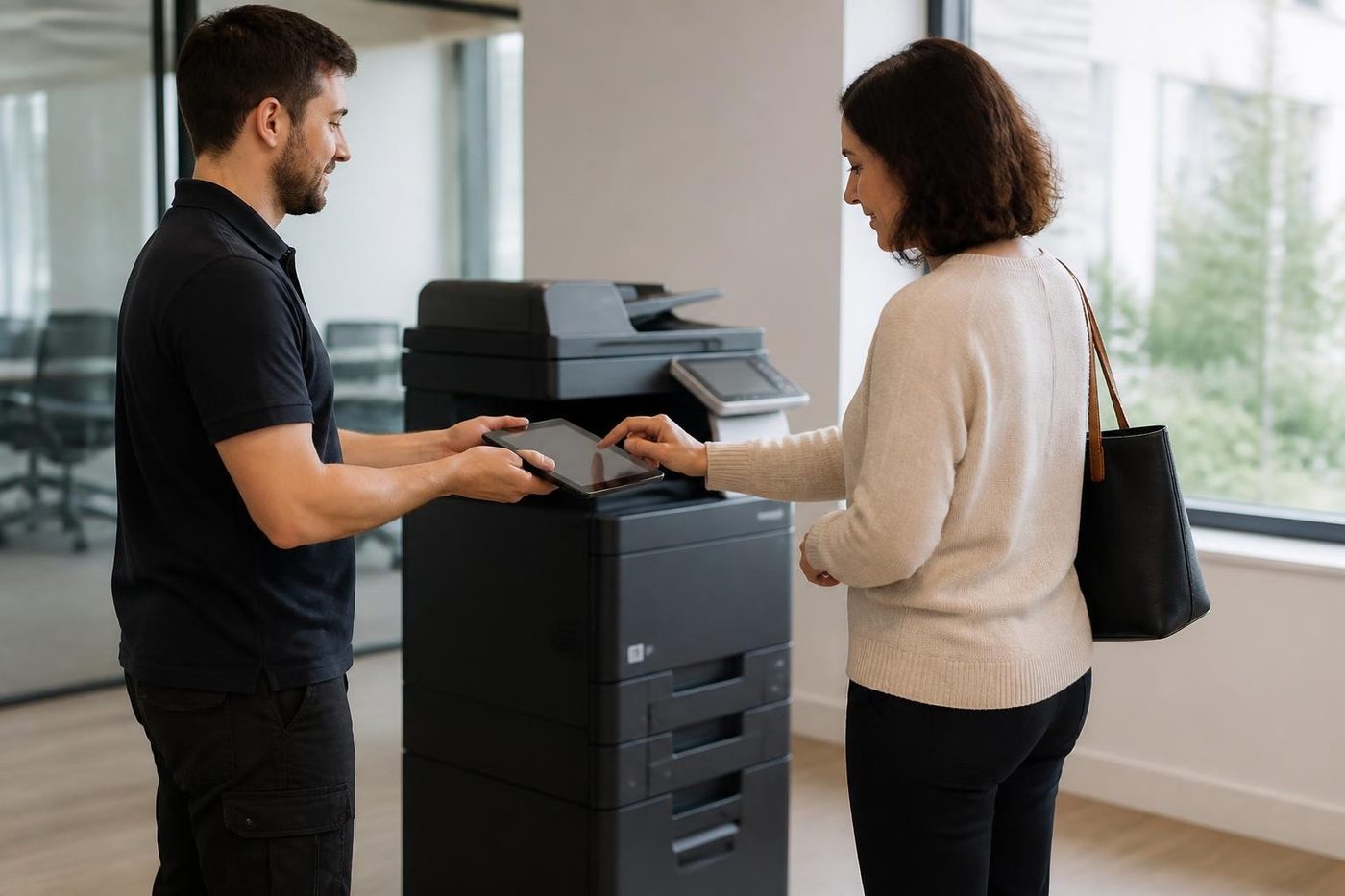 Relocation and setupCopier moves, installation and network setup, tested before we leave.
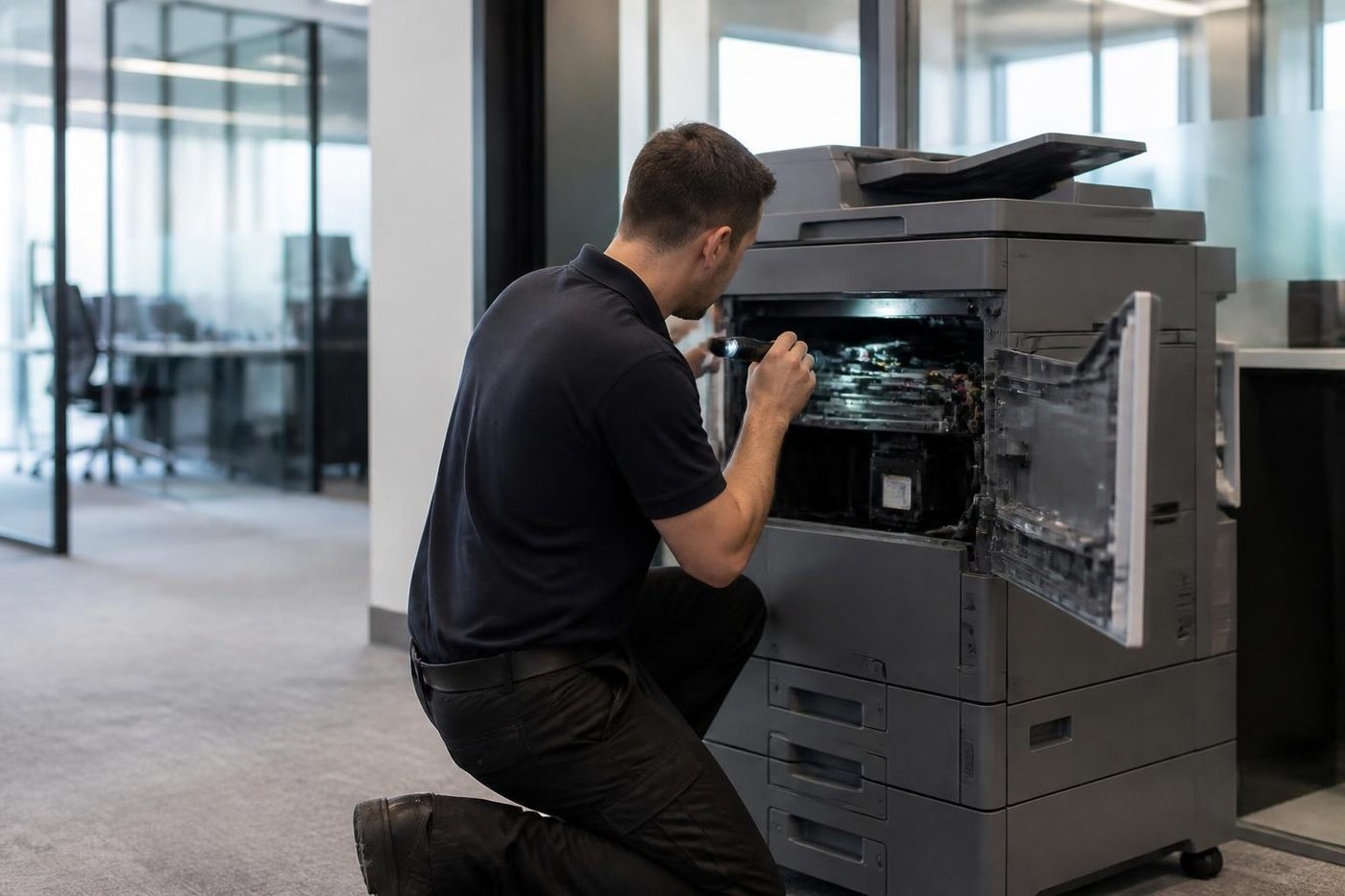 Printer and photocopier repairsCopiers and printers repaired at the desk where they broke.
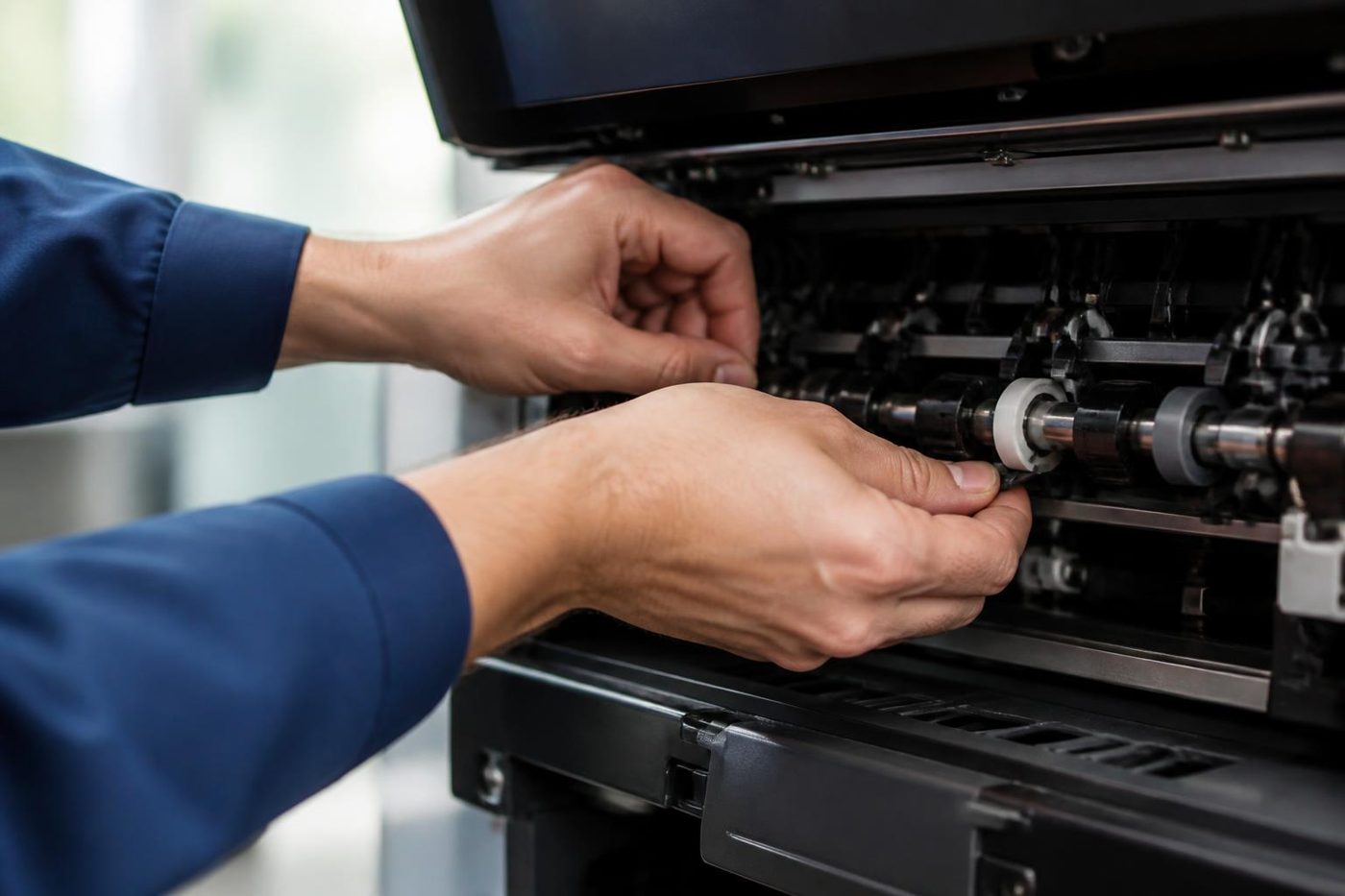 Photocopier servicePlanned servicing before the machine makes the decision for you.Scan to email not workingScans that never reach an inbox or a shared folder.Printer offline and network faultsPrinter offline, missing or unreachable on the network.New photocopiersNew commercial copiers, delivered and set up.
 Used and refurbished photocopiersTested and warranted used, refurbished and ex demo commercial copiers, delivered and set up.A3 photocopier repairsBig floor standing copiers, mono and colour, repaired in place.
Buy, sell and lease
Buy, sell and lease commercial copiers in Brisbane
We also sell new and refurbished commercial copiers and buy used ones. Same team, same technicians.
Inside the buildings we look after
Questions people ask us on the phone
How long does an installation take?
It depends on the machine and the office. A workgroup laser is quick. A floor standing copier with a finisher and a long list of scan destinations takes longer. We give you an idea on the phone.
Do you install machines you did not supply?
Yes. If you bought it elsewhere, or it came from a lease, we can still set it up, provided the contract allows it.
Do you work with our IT provider?
We prefer to. We agree early who does what, and we hand over the settings note afterwards.
Can you install several machines at once?
Yes. We set up one fully, check it, then copy the settings so the machines match. Several floors or buildings are planned as one visit.
Will you move our old copier and set up the new one?
We can do both. The relocation page covers the move, and an old machine can be removed or bought back if it is still worth something.
What do you need from us before the visit?
The make and model, the room, who looks after the network, the mail server details if scan to email is wanted, and a list of who needs to print.
Can you set up user codes or card sign in?
Where the machine supports it, yes. We set the defaults with you and show the person who looks after the machine how to add and remove users.
What happens to our old machine?
We can remove it, and if it still has value we can buy it. Where it holds data, we clear the storage first.
Do you change the factory administrator password?
Yes, on every machine, and we note who holds the new one.
Can you set up printing from Macs and phones?
For Macs, yes. Mobile printing depends on the machine and the network, and we say plainly what will and will not work before we start.
Do you advise on where the machine should go?
Yes. We look at clearance, sun, doors, power and the network point, and say what we would change if we were choosing.
What if something goes wrong after the installation?
Ring us. We know how the machine was set up, and the technician has the notes. If the same fault returns we fix it again at no charge.